Getting Started with Claude Code: A Researcher’s Setup Guide
Video 1 in a series on Claude Code
Part 1 of a series on AI coding tools for empirical research, accompanying my Markus Academy video series. This series follows an earlier Markus Academy mini-series with Ben Golub in December 2025, which focused on using LLMs for theoretical economics work with Cursor and his software Refine.ink.
These blog posts are companion pieces to go with the videos I recorded with Markus.
I’ve been using AI coding tools in my research workflow for the past year or two. However, this significantly accelerated last fall when I started using Claude Code. At this point, you have very likely heard about agentic AI and the ways that is transforming coding and research. The number of posts that say ``I had AI write a whole paper in 30 minutes!’’ are growing, and it feels a bit the world is shifting under our feet.
If you do empirical work and you’re not using these tools, you’re leaving a lot on the table. There are two reasons why I think you need to engage with these tools:
You can do more, think about more topics, and learn new things. The distance between research idea to result is a lot smaller. I do not find the raw ideas generated by AI to be that compelling, but execution of ideas is much faster, and can be done more efficiently. The tedious stuff—data cleaning, debugging, reformatting, scraping—gets dramatically faster. It’s also going to encourage coding work with a much better reproducibility framework—you keep track of your path because the computer is doing it and doing it relatively quickly.
Even if you are not interested in using these tools, it is very important to understand what is possible, and what is not. Staying abreast in tools is important simply to understand what is AI bullshit vs. AI possibilities. As a referee, an adviser, or a co-author, you should be calibrated to what’s going on.
The goal of these posts (and associated videos) is targeted towards: a) individuals who are unfamiliar with AI tools b) individuals who use the tools, but irregularly and c) individuals who are excited and have been using the tools, but want more ideas and background.
What is Claude Code?
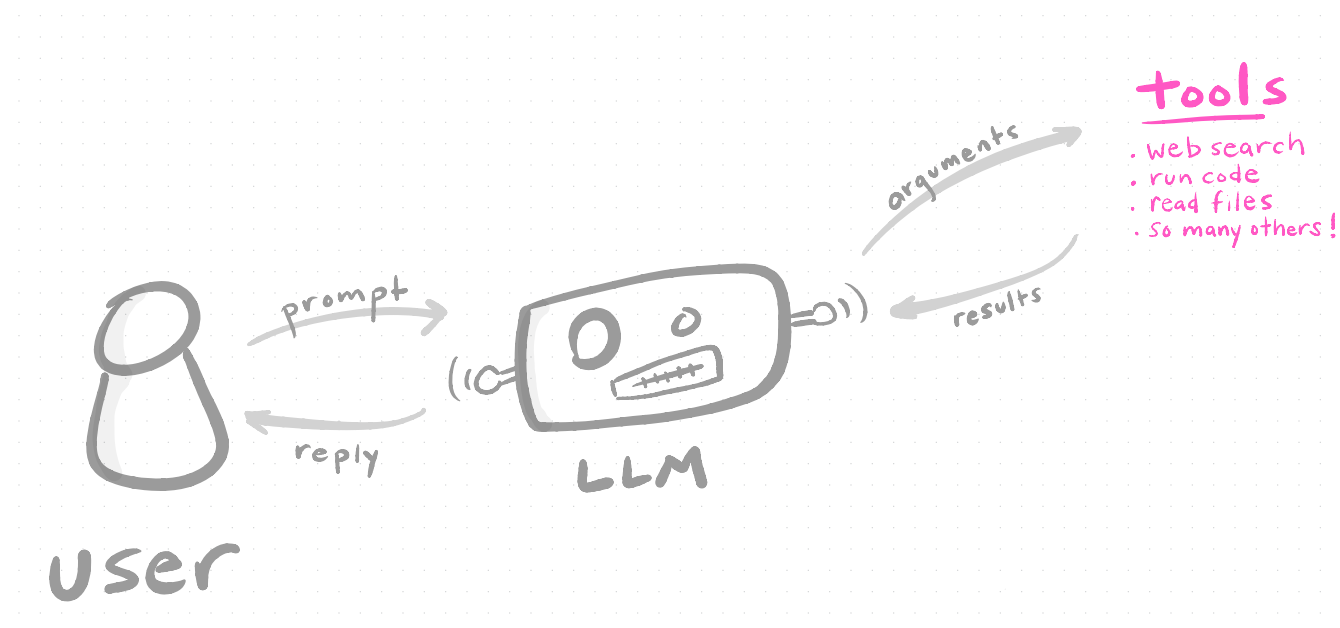
Claude Code is an AI assistant that runs in your terminal. You type natural language, and it reads your files, writes code, executes scripts, and interacts with your entire project. Think of it as a very capable RA that happens to live on your computer.
The key distinction from using ChatGPT or Claude in a browser is that Claude Code has access to your local filesystem. It can see your project structure, open your datasets, modify your scripts, run your code, and show you the output.
A good analogy between using the web browser and on your computer is the difference between exchanging emails with a smart techy person (or posting / searching on Stack Overflow) and having them sit next to you, coding while you two talk. As you will see, this can massively speed up things (especially as you eventually get to say ``this looks great, I’m going to go do something else while you code this up!’’ guilt-free.)
A ladder of AI coding tools
A good friend of mine, Kyle Jensen, has described a useful hierarchy of where people sit with these tools—a kind of “pathway to enlightenment” with different rungs.
Level 0–1: You’re using ChatGPT in a browser, copying code down, pasting it into your editor, running it, hitting an error, copying it back up, and so on. Or you’re using an IDE with something like GitHub Copilot doing inline completions—helpful, but still basically a chat interface. (Markus asked about Microsoft Copilot here—to clarify, GitHub Copilot is the coding tool that runs inside VS Code and is distinct from the Microsoft Copilot you see in Word or Bing, though both are owned by Microsoft and both use LLMs under the hood.)
Level 2: You have an agentic IDE—something like Cursor, which is very AI-agent-forward. You tell the LLM to do something and it runs across your screen editing files, reading code, looking things up. It can dispatch tasks on its own. But it’s still operating within the editor environment.
Level 3: Dedicated coding agents—Claude Code, OpenAI’s Codex, Gemini CLI, and open-source alternatives like Open Code. These run in your terminal with access to your full computing environment. They can think about a task, read files, write files, use tools, execute code, create plans, and work more autonomously than IDE-based agents.
Level 4: Adding tools through something called MCPs (Model Context Protocols) to orchestrate and improve how the agent works—connecting it to databases, APIs, and other services.
Level 5: You create a container, tell the agent what needs to happen, and let it go for an hour and a half by itself. It works to completion autonomously. This is what people are referring to when they post on social media about AI writing “a whole paper in half an hour.” It’s not inherently better, but there’s a lot more setup involved.
I should stress: all of these levels use the same underlying LLMs. You can only slice up an AI model so many ways before it’s the same idea going on—you’re just adding new tools and structure around it.
Installation
Two options:
Option 1: npm (if you have Node.js)
npm install -g @anthropic-ai/claude-codeOption 2: Standalone installer
Download from the Claude Code documentation. Available for Mac, Linux, and Windows (via WSL).
After installing, cd into a project directory, and type claude. You’ll need to authenticate here—either you can use a membership or you can pay per call using an API key. There are three subscription levels: Pro ($20/month), Max ($100/month), and Max 20x ($200/month). I pay for Max, but that’s because I use it a huge amount. If you’re already paying $20/month for Claude’s chat functionality, you already have access to Claude Code—try it out right now. My recommendation for getting started is either the $20 or $100 tier. I don’t think you need to move to $200 at all. The API (pay-per-use) approach is also an option, but the subscriptions are heavily cross-subsidized and tend to be the better deal for most people.
One important note: your files stay local. The conversation goes through the API, but nothing gets persisted on Anthropic’s servers. However, if Claude reads your files, that content becomes part of the context sent to Anthropic. Same as if you uploaded those files to any chatbot’s website.
So if you have highly sensitive research data, wall it off. IRB data, PII, anything that should be on a HIPAA-compliant server—don’t let Claude anywhere near it. And try not to paste API keys or passwords; Claude will often warn you if you do, but better not to in the first place. My rough heuristic: if you keep this data on Dropbox, the risk profile is similar. If you wouldn’t put it on Dropbox, don’t put it in front of Claude. In future posts, I’ll discuss containers and sandboxing for more sensitive workflows.
What is a context window and how does it work?
To use these tools effectively, you need a basic mental model of what’s happening under the hood. The more you can learn, the better, but for now, I want to explain the context window.
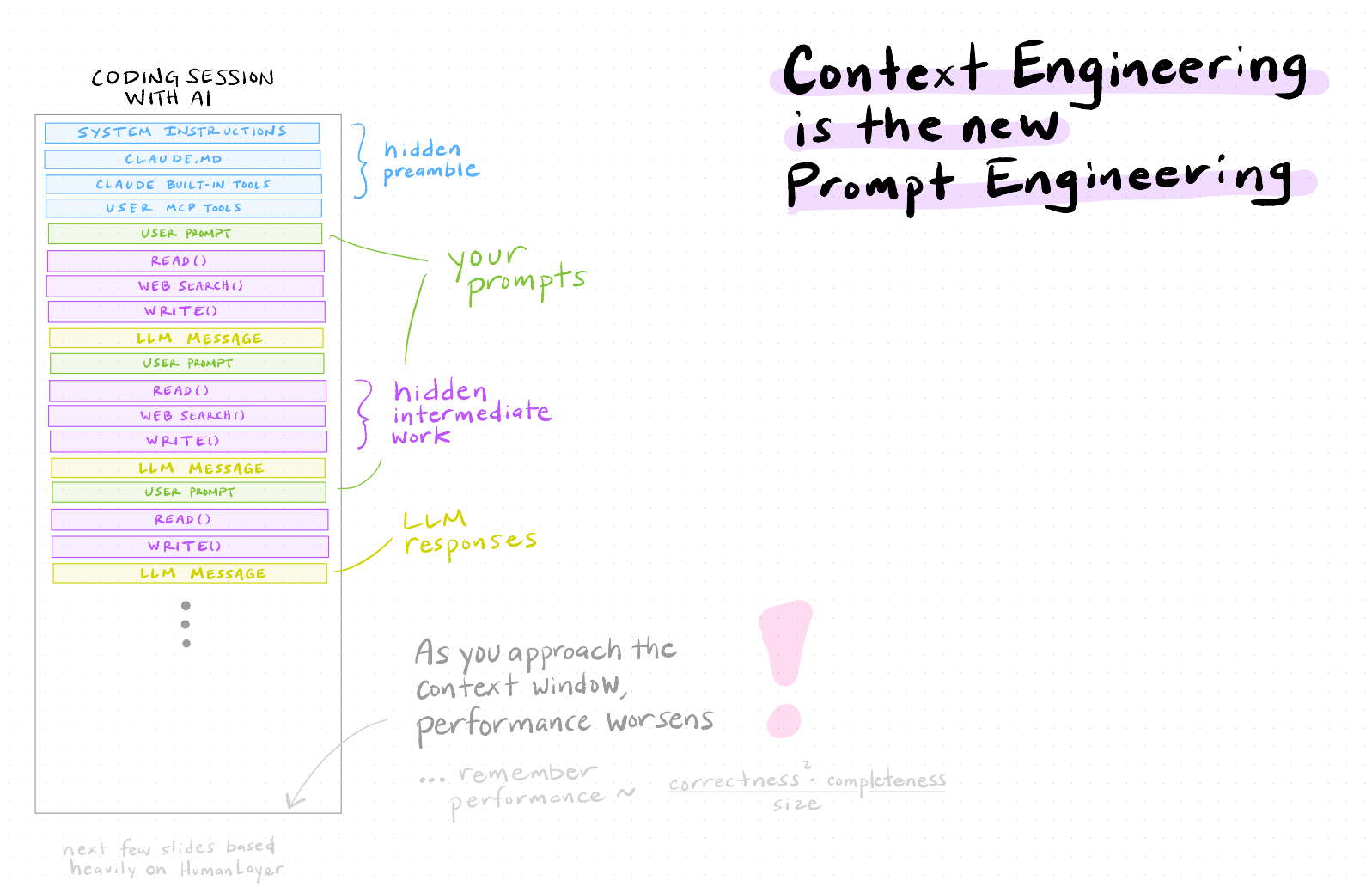
When you type a message to Claude (or any other LLM), you’re not having a conversation the way you’d talk to a person. What’s actually happening is more like passing a very long document back and forth. Every time you send a message, the entire history—your prompts, Claude’s responses, every file it read, every tool it called, every code output—gets bundled up and sent as one big input. The model reads all of it, generates a response, and that response gets appended. Then the whole thing gets sent again on the next turn. If you went down a rabbit hole for 10 minutes on something irrelevant, all of that is still in there, getting sent back and forth.
This bundle is the context window, and it has a fixed size limit measured in tokens (roughly ¾ of a word). For Claude, this is currently around 200,000 tokens. Sounds like a lot. Fills up faster than you’d think.
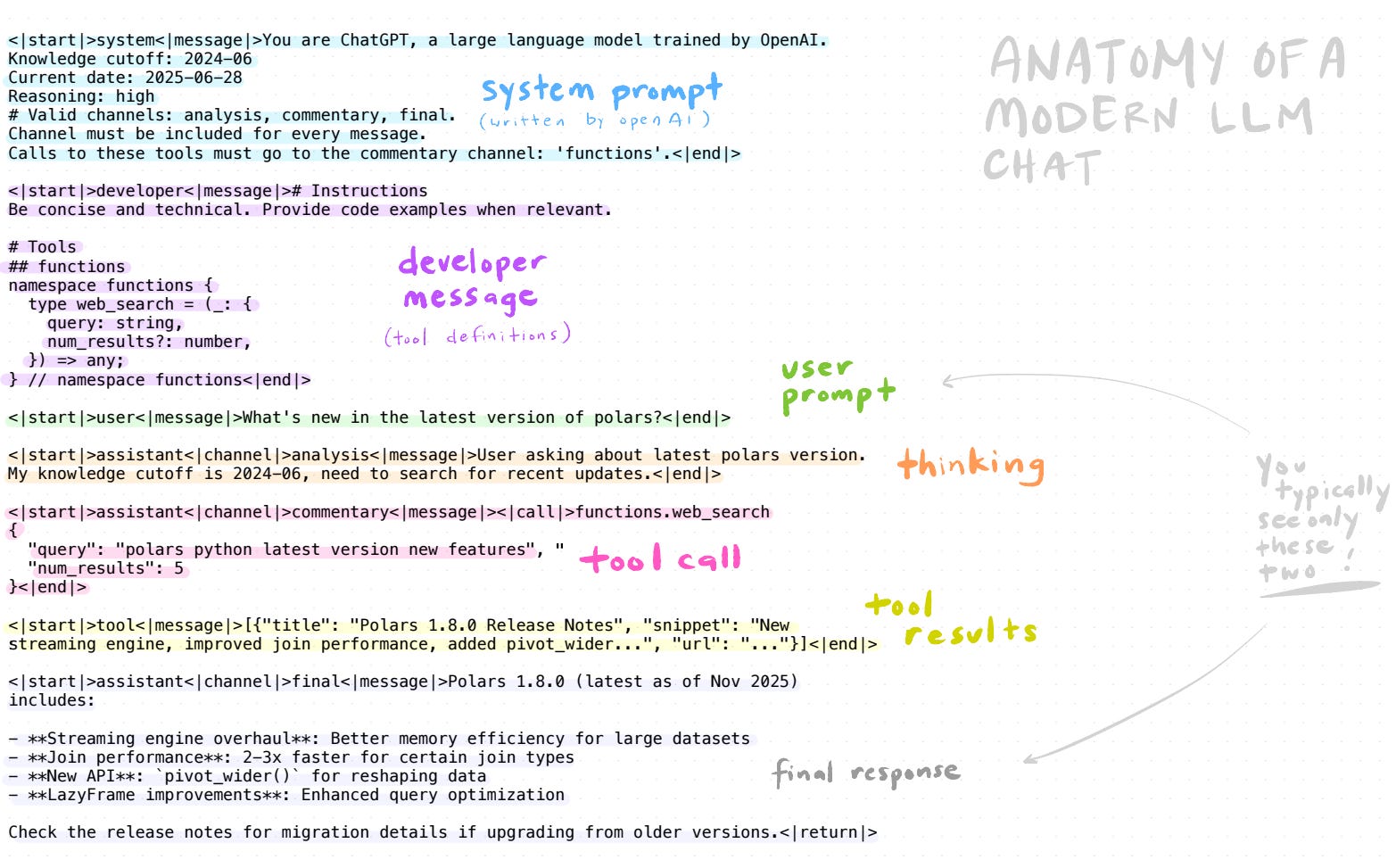
The image above shows what a single “chat” actually looks like under the hood. You typically see only two things—your prompt and the model’s response—but in between, there’s a system prompt (instructions from Anthropic), developer messages (tool definitions), the model’s internal reasoning (“thinking”), tool calls (web search, file reads, code execution), and tool results. All of this lives in the context window and counts against your limit.
Why does this matter? Because there’s a rough relationship that governs how well AI coding works:
As the context grows—more files read, more conversation history, more code output—performance degrades. The model has more to keep track of, and it starts losing the thread. This is the single most important thing to understand about working with AI coding tools.
What happens when you hit the limit: compaction
When your conversation fills up the context window, Claude Code will auto-compact—it summarizes the conversation history into a compressed form and starts fresh with that summary plus the system instructions. (Markus compared this to “training when you sleep”—it’s hard not to anthropomorphize these things, and the analogy isn’t exactly right, but the intuition is similar.)
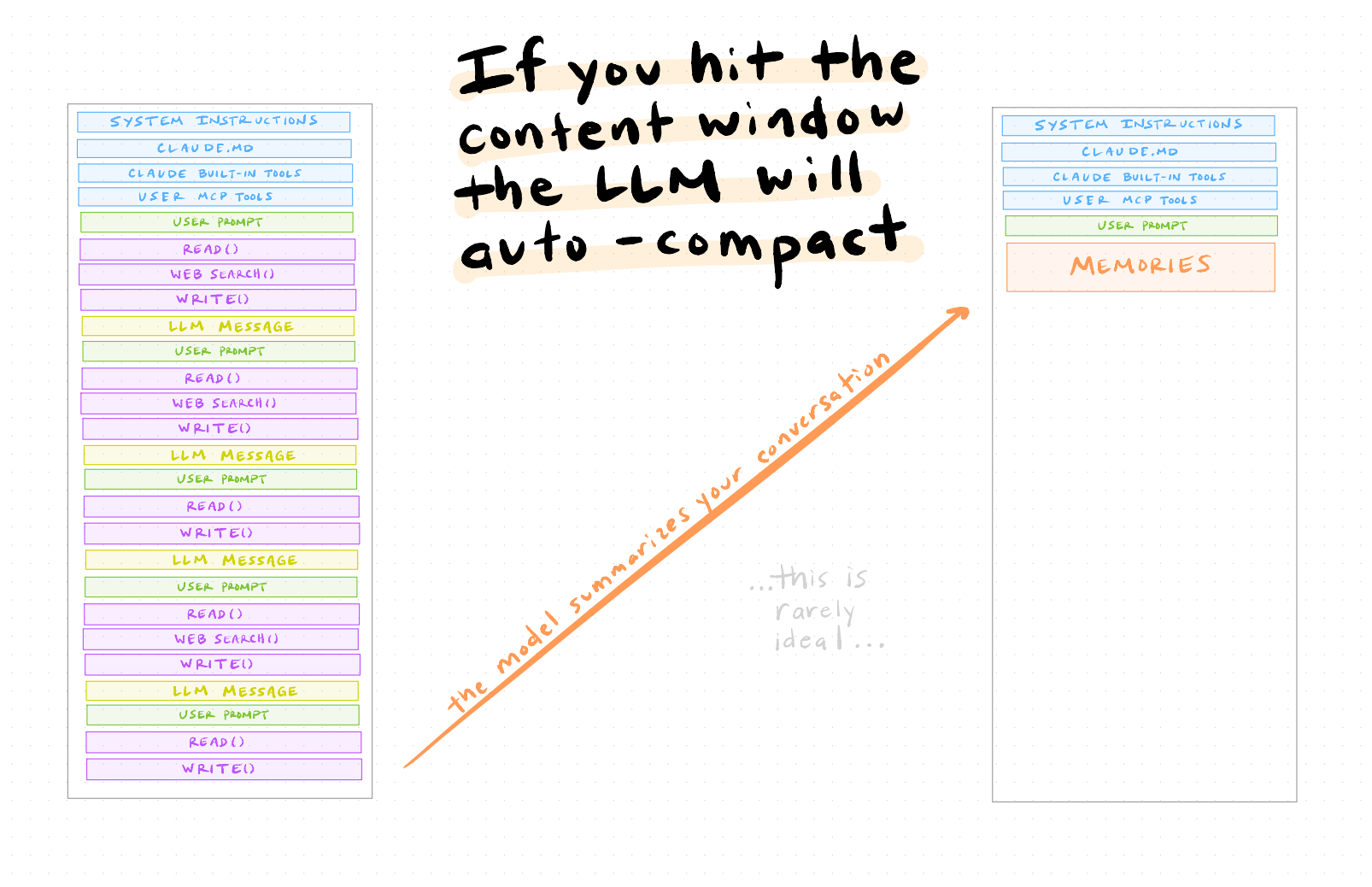
This works, but the model might forget a specific decision you made three steps ago, or lose track of a constraint you mentioned early on.
The better approach is to compact intentionally rather than waiting for the context to overflow. You can type /compact in Claude Code to trigger this manually, and you can even guide what it remembers—for example, /compact remember all the things related to the nonlinear programming we just studied will steer the summary toward what you actually care about.
The idea: periodically have Claude write its progress and plans to files on disk, then start a fresh conversation that reads those files.
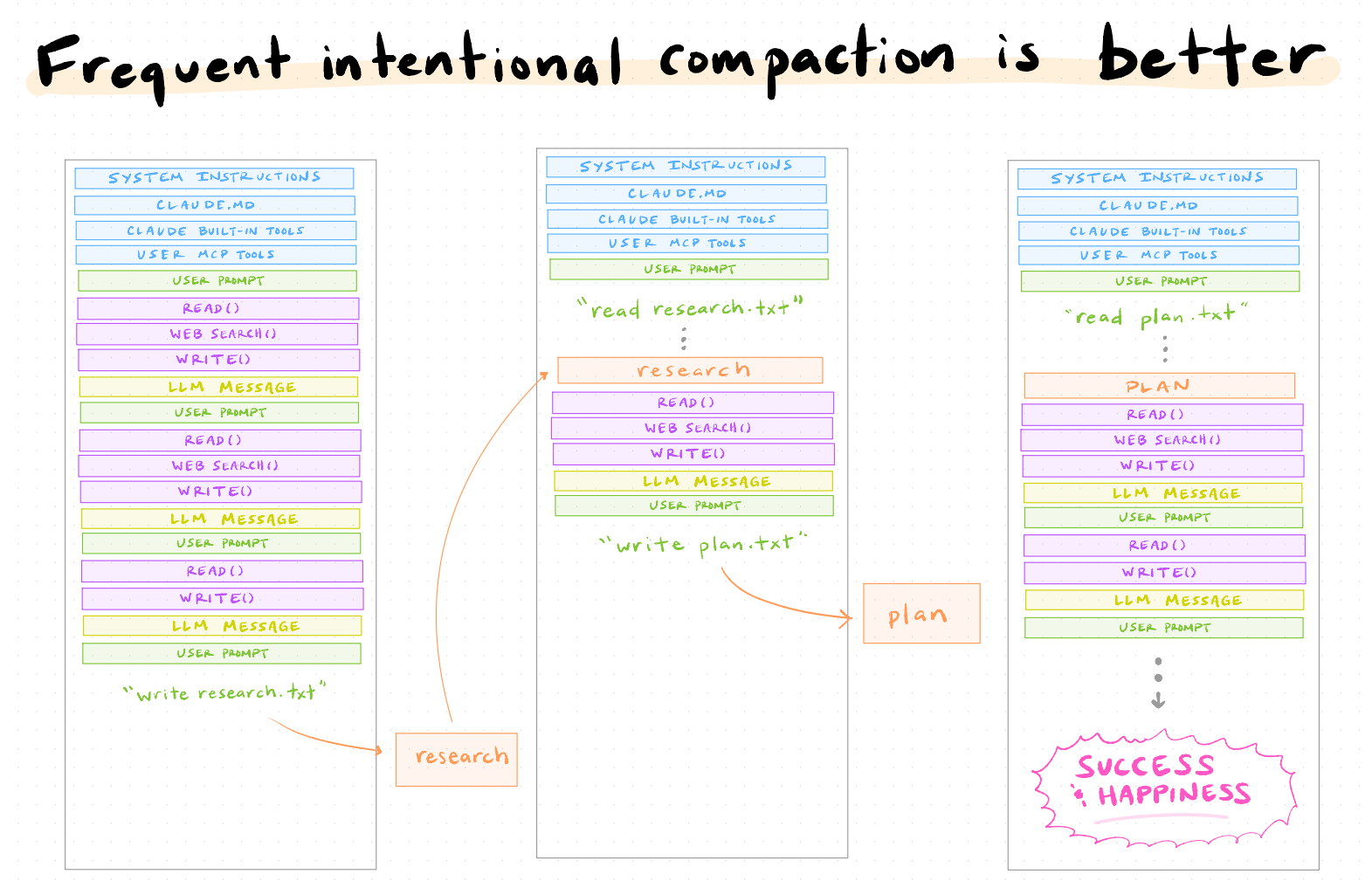
For example, halfway through a data analysis, you might say: “Write a summary of what we’ve done so far and what’s left to do to a file called progress.md.” Then start a new Claude Code session and say: “Read progress.md and continue from where we left off.” The new session starts clean—full context budget available—but with all the relevant information loaded from the file.
This is a habit worth building early. A few practical implications (although these recommendations have become less relevant with recent innovations in Claude Opus 4.6, which I notice does much of this for you and seems to degrade less quickly):
Long sessions degrade. If you’ve been going back and forth for 20+ turns with lots of code output, consider starting fresh. The model’s performance at turn 30 is noticeably worse than at turn 3.
Write state to files. Don’t keep critical information only in the conversation. If Claude made an important design decision, have it write that to a README or a plan file. Files persist; conversation context doesn’t.
Break work into chunks. Instead of one marathon session, do focused 5-10 turn sessions with clear objectives. “In this session, let’s just get the data cleaning script working.” Then start fresh for the figure-making.
Terminal Setup: Why It Matters
You can run Claude Code in your default terminal. But since you’ll be spending a lot of time here, it’s worth investing 15 minutes in a better setup. I recommend two tools:
Ghostty
Ghostty is a modern, GPU-accelerated terminal. In practice this means: it’s fast, it renders text cleanly, and it handles large code outputs without lagging. Install with:
brew install ghosttyZellij
Zellij is a terminal multiplexer—think tmux, but much more user-friendly. The killer feature: split-pane view. Run Claude Code on the left, watch your files on the right. When you’re iterating on an analysis, being able to see Claude’s code and the resulting output side by side is extremely useful.
brew install zellijA few configuration tips:
Key shortcuts: In Zellij,
Ctrl+pthendsplits a pane.Alt+arrownavigates between them.
Oh My Zsh
While you’re setting up your terminal, it’s worth spending five minutes on your shell. If you’re on a Mac, you’re probably already using zsh (it’s been the default since macOS Catalina). Oh My Zsh is a framework that makes zsh significantly more pleasant to use. Install with:
sh -c "$(curl -fsSL https://raw.githubusercontent.com/ohmyzsh/ohmyzsh/master/tools/install.sh)"Why bother? A few reasons that matter for our workflow:
Better autocompletion. Tab-completing file paths, git commands, and Python environments becomes much smoother. When you’re jumping between scripts that Claude generated, fast navigation matters.
Git integration in your prompt. Oh My Zsh shows your current git branch and status right in the terminal prompt. Since we’ll be using git heavily to track Claude’s changes, seeing at a glance whether you have uncommitted work is useful.
Plugin ecosystem. The
zplugin learns your most-visited directories and lets you jump to them with fuzzy matching (z markustakes you to~/repos/markus-ai-talk). Thevirtualenvplugin shows your active Python environment. Small quality-of-life improvements that compound.
You don’t need to go deep on customization—the defaults are already a significant improvement over bare zsh. Pick a theme (I use a simple one that shows the directory and git branch), enable a few plugins (git, z, virtualenv), and move on.
Claude Code vs. Cowork
I should mention Cowork, which is a web-based alternative that comes bundled when you download the Claude desktop app (alongside the regular chat interface). Quick comparison:
Claude CodeCoworkInterfaceTerminalWeb browser (Chromium-based)File accessFull local filesystemSandboxedInternetFull network accessRestricted IP addressesBest forFull projects, power usersQuick explorations, sharingLearning curveModerateLow
The sandboxing in Cowork is worth understanding. It restricts which IP addresses the agent can reach—it needs to query Anthropic for LLM responses, but it has a very restricted way of reaching the broader internet. You can adjust these permissions (in the desktop app, you can allow it to access the internet and be more permissive about what you let in and out), but out of the box it won’t be nearly as autonomous as Claude Code. This has benefits—it’s less risky—but don’t use Cowork, find it limited, and conclude that “AI is not that powerful.” That would be the wrong update. You’ve taken the LLM and put a lot of restrictions on it.
I use Claude Code for ~90% of my work. I want full access to my files, git, and terminal tools. But Cowork is great for quick prototyping or questions.
The Basic Interaction Loop
Here’s what using Claude Code actually looks like. You navigate to your project directory, start a session, and have a conversation:
> What files are in this project? Summarize the structure.Claude reads the directory and gives you a plain-English overview. Already useful when you’re picking up a coauthor’s code.
> Read clean_data.py and explain what it does, step by step.It opens the file, walks through the logic, and flags potential issues.
> Load data/employment.csv, show the first few rows,
  and compute summary statistics.
Claude writes a script, runs it, and shows you the output—all in the terminal.
This is the loop: describe what you want, Claude writes and executes, you iterate. It’s surprisingly natural once you get used to it.
Tips for Getting Started
A few things I’ve learned:
Be specific. “Analyze this data” → bad. “Load employment.csv, compute monthly growth rates by sector, and plot a time series with the BLS style” → good.
Iterate and backup. Manage your context window If the output isn’t quite right, say so. “Make the legend larger and move it to the top-left” is a perfectly good follow-up. You don’t need to re-specify everything. However, don’t argue with the LLM. Alternatively, hit
ESCand go backwards to rerun the command (this resets the context back to the prior state).Correct early. If Claude is heading in the wrong direction, interrupt it. A quick “actually, use R instead of Python” saves time.
Trust but verify. This is especially important for research code. Claude is very good, but it can make mistakes—particularly with edge cases in statistical methods. Always check the output against your expectations. It’s the same way you’d work with an RA: the RA can produce results, but you still have to verify them. It’s going to be your work eventually.
One thing Markus asked that’s worth clarifying: if you want Claude to write and run R or Python code, you need to have R or Python installed on your computer. The code executes locally on your machine—Claude doesn’t run it in the cloud somewhere. If you don’t have R installed, you could ask Claude to use Python instead, or you could ask it to install R for you. But the actual computation happens on your hardware. That’s one benefit of Claude Code over sandboxed alternatives—it’s everything you already have on your machine.
What’s Next
In the next post, we’ll take a real dataset and go from raw data to figures, entirely through conversation with Claude Code.
This post accompanies Video 1 of my Markus Academy series on AI coding tools for researchers.
The IRB data warning is one I keep seeing people skip over and it matters. Research workflows have a specific trust problem - you're often working with data that's one mistake away from a compliance issue, and Claude Code's default behavior is to read everything in the project directory.
The context window degradation point is also underappreciated (most people just keep going until outputs get weird). Good that you're building the Markus Academy series around this - researchers need the setup guide more than developers do tbh, the stakes for getting it wrong are higher.
This is such a well-structured breakdown, thank you for putting it together. The ladder analogy hit close to home — I spent months at Level 0-1, convinced I was "using AI" when I was really just copy-pasting between tabs.
The part about context window degradation is something I wish someone had told me earlier. I've had sessions where Claude started giving noticeably worse answers and I thought it was a model issue, not a context problem. That mental model shift changes how you work with it completely.
What you've described here is exactly the gap we're trying to bridge with a course we're building — "Master Claude in the Real World." Not the theory of what Claude can do, but the actual workflows: prompting, Claude Code, Cowork, and integrations. We just launched on Kickstarter for anyone who wants to follow along as we build it out: https://shorturl.at/ZrG8p
Excited to see where this series goes. The jump from Level 2 to Level 3 is where things genuinely start to feel different.